
8 tips to make your Nuke scripts run faster.
If your Nuke script is starting to lag or feel slow, don’t worry — it happens to everyone. Here are some simple tips you can try to help your scripts run smoother and faster, without getting too technical.
1. Use performance timers to see what’s slowing things down
Not sure why your script is being slow? Nuke has a built-in tool that can help you spot the problem.
You can turn on performance timers, and Nuke will color your nodes based on how long they take to process:
🟢 Green = fast
🟠 Orange = medium
🔴 Red = slow
This helps you quickly find which parts of your script are causing delays, so you know what to precomp or clean up.
To turn it on, open the Script Editor and paste this in:
nuke.startPerformanceTimers()To turn it off:
nuke.stopPerformanceTimers()
2. Remove channels you don’t need
Every time you bring in a render, it usually comes with a bunch of extra passes — depth, motion vectors, spec, etc. If you're not using those, they're just slowing your script down.
Use the Remove node to delete channels you don’t need. Less data = faster script.
Pro tip: Some nodes, like Blur, process all channels by default. So even if you're only using RGBA, it still blurs everything unless you clean it up first. Removing unused channels makes everything snappier.

3. Set your favorite node defaults automatically
If you always do the same tweaks when adding certain nodes — like setting Backdrop font size or making Remove default to RGBA — save yourself the trouble and automate it.
You can do this by adding a couple lines of code to your menu.py file (in your .nuke folder — might be hidden).
Example:
nuke.knobDefault('Remove.operation', 'keep')
nuke.knobDefault('Remove.channels', 'rgba')
So now every new Remove node will come in just the way you like it, every time.

4. Connect nodes faster with the “Y” hotkey
Dragging wires across the graph can get messy, especially if the nodes are far apart. Here’s a shortcut: just use the Y key.
Click the first node
Shift + click the one you want to connect it to
Hit Y
Boom. Connected. It even works with Merge nodes — select the Merge, then shift-click the two inputs, press Y, and Nuke does the rest.

5. Set a hotkey to close all property panels at once
Got a bunch of property panels open and want to close them all in one go? You can make a custom hotkey to do that.
Add this to your menu.py:
def close():
    [node.hideControlPanel() for node in nuke.allNodes()]
nuke.menu('Nodes').addCommand('close', 'close()', 'shift+d')
Now pressing Shift + D (or whatever combo you want) will close all open panels. Super useful to keep your workspace tidy.

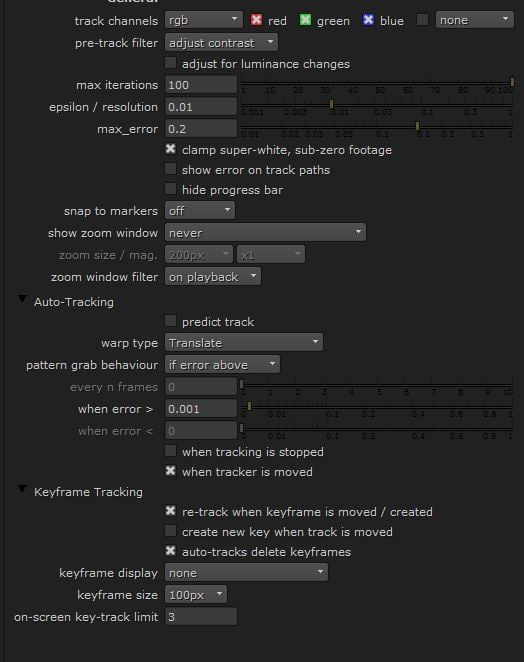
6. Turn off tracker previews for better performance
Using a Tracker node and getting that annoying “Calculating Preview” message? That popup can seriously slow things down.
Here’s how to fix it:
In your Tracker node, go to the Settings tab
Change Show Zoom Window to “Never”
Set Keyframe Display to “None”
Uncheck Create New Key When Track is Moved
Done. Your script should run smoother now. Just remember to turn them back on if you need to adjust tracking later.
7. Check inside your gizmos (seriously)
Sometimes scripts get slow because of what’s happening inside a gizmo — especially if it has glows, blurs, or other effects that blow out the bounding box.
Here’s what to do:
Right-click the gizmo, choose Copy to Group
Press Ctrl + Enter to open it up
See what’s going on inside — clean up extra nodes or crazy bounding boxes
Also: if a node is pushing out huge image sizes, use a Crop node afterward to keep things tight. Just be careful not to crop too much if you’re using Lens Distortion or Camera Shake later, since they need some extra pixels.

8. Stop Scanline Render from spitting out extra channels
By default, ScanlineRender adds motion vectors to your script — even if you don’t need them. These show up as pink or blue boxes under the node and can slow things down.
Here’s how to stop that:
Open the ScanlineRender node
Go to the Shader tab
Set Motion Vectors to “Off”
That’s it — less junk in your script, and things run faster.


